
Make time for what
you need to do.
See the day, week, month or year. Plan tasks beside your events, drag work into a time slot, and resize or move a session without changing its deadline.
Explore CalendarThe work session links back to the task.
Explore Tasks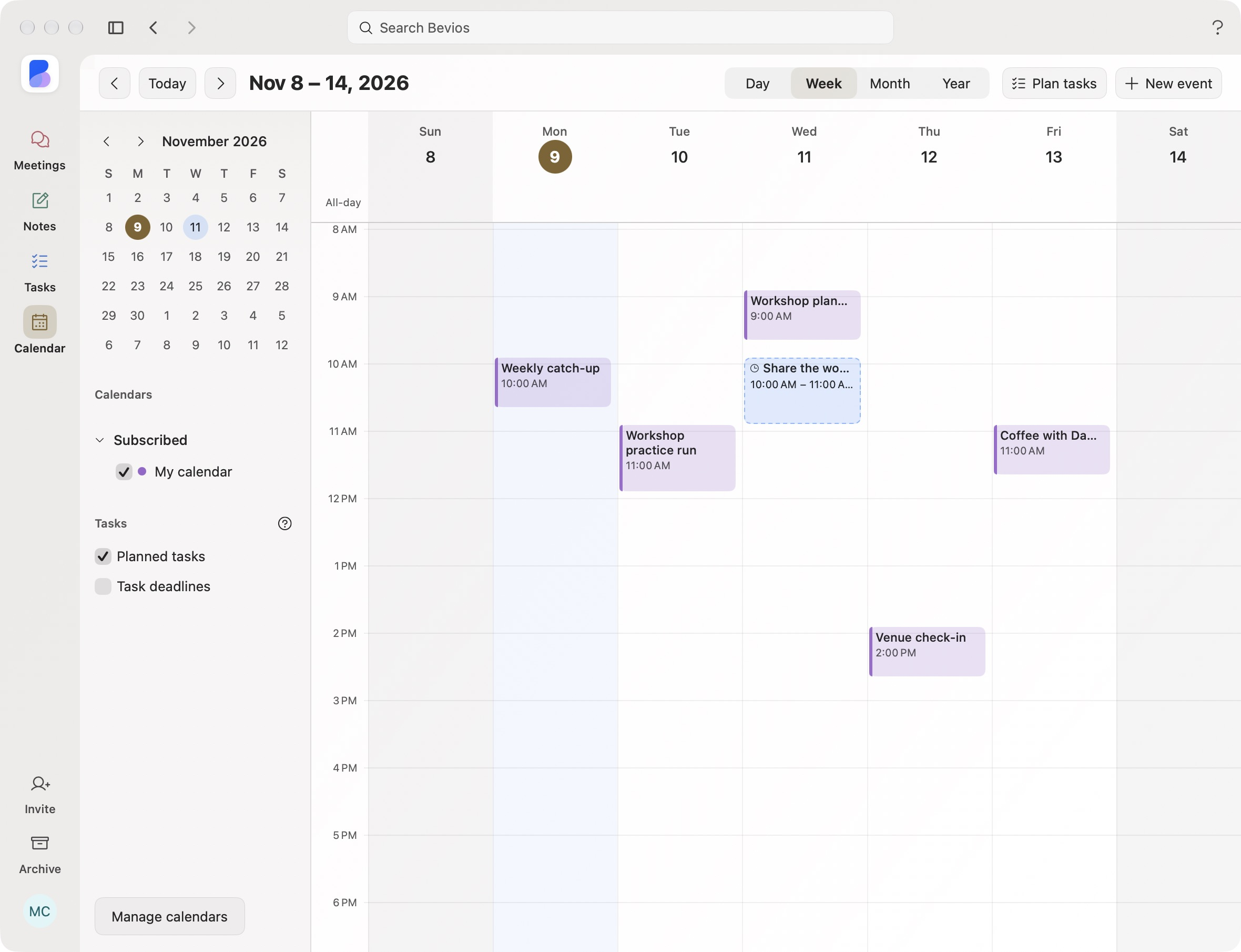
See your calendars and planned tasks together.
Bring the calendars you use into your workspace. Show work, personal events and planned tasks together, or narrow the view to the part of the day you need.
- Choose your sourcesDecide which connected calendars appear.
- Switch the viewUse Day, Week, Month or Year. Open a date for the detail you need.
- Keep the contextOpen the event or planned task without losing the work around it.
A deadline says when it is due. A session says when you will do it.
Set aside time for the work before its deadline. Move the session when the day changes, while the task stays in its original list.
- Plan the workOpen Plan tasks, filter by list or search, then schedule a task or drag it onto Day or Week.
- Adjust the dayDrag a session to move it, resize either edge, and use Undo if plans change again.
- Keep deadlines separateA change to a work session does not have to change the due date.
A little more detail.
Does moving a session change the task deadline?
Planned sessions are separate from a task’s due date, so you can change when you work without changing when the task is due.
Will Bevios write to my calendar?
Calendar writing requires event-management permission. Optional Busy blocks use the calendar you choose.
Bring your day into your workspace.
Your commitments and planned work, together.
Download for MacmacOS 14.2 or later · Free during beta
See how it connects